
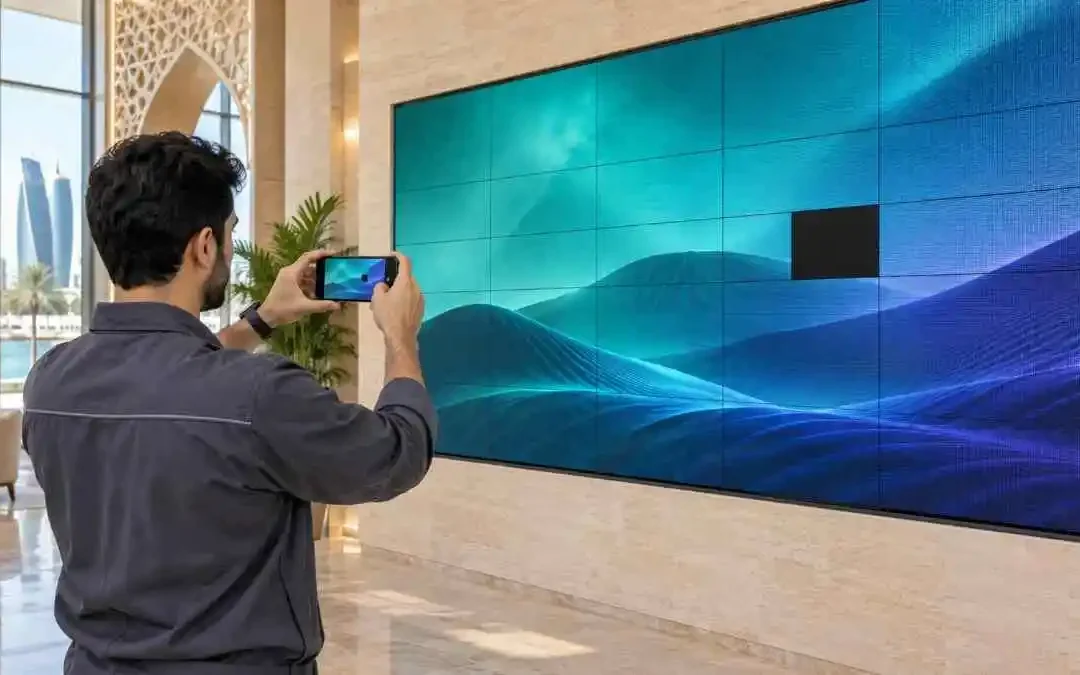
A blank LED wall in a Doha reception area or a flickering shopfront display can interrupt daily operations. If you are searching for LED screen repair in Qatar, start by recording the symptoms and checking accessible external controls. The aim is to give a technician useful information, not to attempt electrical repairs.
This guide focuses on commercial LED displays, including modular video walls and signage installations. Some source checks also apply to televisions and LCD signage, but their internal construction differs. Follow the equipment manual and your site’s procedures. Do not open cabinets, remove modules or reach behind a mounted screen to investigate a fault.
Document the Screen Fault and Installation Details
Before changing anything, describe what you can actually see. Is the whole screen black, one rectangular area dark, or the image present but discoloured? Does the fault appear immediately, after several hours, or only when a particular video plays? These distinctions help separate content and signal questions from faults within the display.
Take a wide photograph showing the entire screen and a closer image of the affected area from a safe position. For intermittent problems, record a short video and note the time. Phone cameras can introduce bands or flicker that are not visible in person, so explain whether the recorded effect matches what your eyes see.
Record recent changes, including a new media player, content update, power interruption, nearby building work or altered operating schedule. For an outdoor screen in Qatar, note any recent dust exposure, rain or cleaning. These details provide context; they do not establish the cause or prove that the screen needs replacement.
Prepare a Short Fault Report
Use this template: Site and screen location; manufacturer and model; installation date or approximate age; indoor or outdoor use; screen dimensions; source player and controller details; symptom and affected area; first occurrence and frequency; recent changes; checks already completed; photos or video; warranty documents; site contact and access restrictions.
Copy details from existing records or safely visible labels. Do not remove covers to find serial numbers. For a mall installation, note permitted maintenance hours and any access approvals. For a rented event screen, contact the rental provider before changing connections or settings; responsibility for troubleshooting may sit with its technical team.
Perform Safe External Checks
Limit checks to controls and connections you are authorised to use. Make one change at a time and record the result. If the screen is elevated, sealed, outdoors in wet conditions or accessible only through a locked equipment area, leave physical checks to the responsible technical team.
Check the Source and Content First
Confirm that the intended source is selected and that the media player or computer is running. Check playback schedules, blanking controls and whether the source is showing a desktop instead of the intended content. In a reception area, a scheduled shutdown or sleeping player can resemble a display failure.
If authorised, try a known-working image or video that previously displayed correctly. If only one file fails while other content looks normal, investigate that file’s format, dimensions and playback settings. Keep a copy of the original configuration rather than changing several settings together.
Where the installation permits, test the source on a compatible spare monitor or connect a known-working source through the same approved input path. A successful test narrows the possibilities but does not prove every downstream component works. Avoid factory resets or changes to LED mapping, receiver-card configuration and specialist controller settings.
Inspect Accessible Cables and Power Indicators
Look for loose connections or obvious cable damage only where connections are accessible without tools, climbing or moving the display. Do not handle exposed conductors or damaged plugs. If you are authorised to reconnect an ordinary external signal cable, follow the equipment’s shutdown procedure first and preserve its original port assignment.
Check visible indicators on the screen, controller and source, and record their state. Indicator meanings vary by model, so consult the manual rather than assuming a particular colour confirms normal operation. Do not test sockets, reset tripping breakers or access distribution boards as part of display troubleshooting.
A controlled restart may help if the manufacturer’s instructions and site procedures allow it. Coordinate with the operator first, use the prescribed shutdown and startup sequence, and record the result. Avoid repeated power cycling. If the fault returns, report the pattern rather than treating each restart as a lasting fix.
If your signage uses a BrightSign player, check the BrightSign player troubleshooting guide for model-specific indicator codes.
Observe the Surrounding Conditions
From a safe position, look for blocked ventilation, objects placed against equipment and visible moisture. In Qatar, outdoor exposure and indoor cooling conditions are worth documenting, but they do not identify the failed part. Leave internal cleaning, fan inspection and temperature measurements to qualified personnel; do not spray liquids into the equipment.
Know When to Stop and Call a Technician
Stop immediately if you notice smoke, sparks, a burning smell, water entering equipment, damaged power wiring or a loose mounting assembly. Keep people away and follow the site’s emergency procedure. Shut down only through a designated, safely accessible control if doing so is safe; otherwise, leave isolation to authorised personnel.
A persistent dark module, missing row, repeated colour defect or fault affecting the same physical section needs technical assessment once basic source checks are complete. These symptoms can have several causes. A photograph alone cannot reliably distinguish a module fault from a power, signal-distribution or configuration problem.
Do not press on modules, pull cables inside cabinets or try replacement parts from another screen. Cabinets may contain hazardous electrical components, and physical intervention can damage connectors or affect warranty coverage. Work at height, structural access and electrical testing require suitable skills and site controls.
For an event venue or busy retail site, tell the operator how the fault affects use. A stable partial image may still be unsuitable for essential customer information. Arrange an alternative display or printed notice where needed, rather than continuing troubleshooting while customers depend on unreadable content.
The UK Health and Safety Executive’s electrical safety guidance explains when damaged electrical equipment should be taken out of use and why repairs should be handled by a qualified person.
Prepare for a Repair-or-Replacement Assessment
Ask the assessor to explain the suspected cause, proposed tests, parts availability and expected downtime. A useful quotation should clarify access requirements, labour, replacement components, configuration or calibration work, and post-repair testing. Confirm what is included and whether further faults discovered during inspection would require separate approval.
Repair versus replacement depends on more than the price of one module. Relevant factors include the screen’s condition, fault history, compatible spare parts, remaining warranty and operational needs. Replacement modules may require assessment for brightness and colour consistency with the existing display; matching dimensions alone is not enough.
For an outdoor installation, any replacement should also suit the location and intended operating conditions. Review mounting, weather exposure, ventilation and service access with the project team. Qsmart’s indoor and outdoor LED display options can support that broader discussion, but a product overview cannot diagnose an existing fault.
Finish by sending one clear report with the symptoms, installation details, photographs and results of authorised checks. Keep configuration files unchanged and make site access arrangements before a visit. For LED screen specifications and project enquiries, consult Qsmart’s supplier page. Confirm directly whether assessment or repair support is available for your particular equipment before arranging service.
Frequently Asked Questions
Is the fault in the content source or the display?
Check whether the problem affects every source or only one file, player or input. If authorised, compare a known-working source or compatible spare monitor using the approved input path. Record the result for the technician; this comparison can narrow the investigation but does not diagnose an internal component.
What information helps assess repair versus replacement?
Provide the model, installation age, symptoms, fault history, warranty details, photographs and results of authorised external checks. Ask the assessor about compatible parts, colour matching, access requirements, downtime and post-repair testing. Review Qsmart’s LED display background when discussing specifications. Confirm support availability for your equipment before arranging service.


